


Accessible Website Checklist for 2026 Compliance
Digital accessibility is no longer optional. Since 28 June 2025, BFSG requirements have applied to relevant products and services in Germany, making accessible websites important for legal compliance, usability, and trust.
Summary: You can check whether a website is accessible with a checklist covering structure, content, design, forms, documents and extensions. This checklist by NITSAN GmbH explains who must follow the BFSG, in force in Germany since 28 June 2025, and how to test TYPO3 sites step by step.
In Germany, around 7.8 million people live with a disability, and many older users face challenges with vision, mobility, or cognition. Accessible design helps remove these barriers and makes digital content easier for everyone to use.
This checklist helps website owners, agencies, developers, and TYPO3 editors review accessibility step by step across structure, content, design, forms, documents, extensions, and editor workflows.
Who Needs to Follow the Accessibility Strengthening Act (BFSG)?
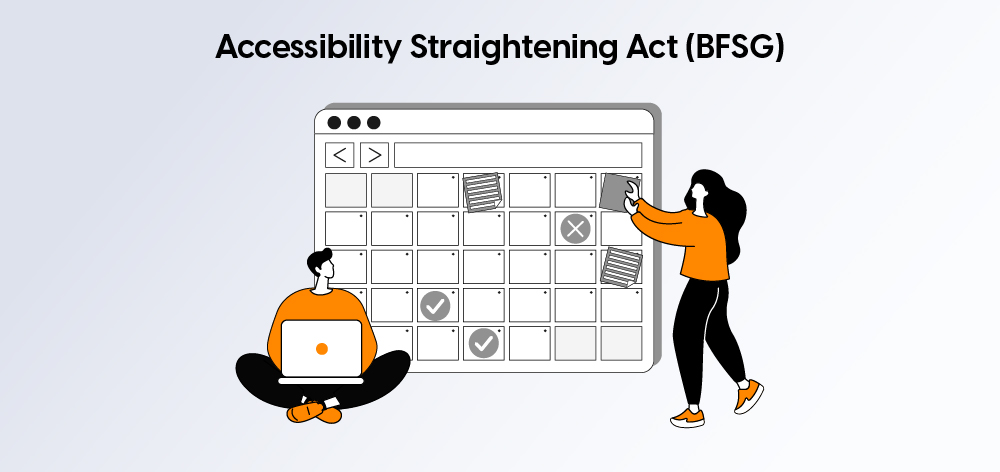
The Accessibility Strengthening Act - known in German as Barrierefreiheitsstärkungsgesetz (BFSG) - has applied in Germany since 28 June 2025. It requires many relevant digital products and services to be accessible to people with disabilities.
For website owners, this means accessibility is not only a design or usability topic. It is also an important compliance requirement, especially for businesses offering consumer-facing digital services.
BFSG Applicability Overview
Website / Service Type | BFSG Relevance | What to Check |
E-commerce websites | Usually relevant | Product pages, cart, checkout, payment, login, order confirmation, and customer support flows |
Booking websites | Usually relevant | Booking forms, calendars, availability filters, payment steps, confirmation pages, and email documents |
Banking services | Highly relevant | Login areas, account dashboards, forms, transaction flows, authentication, and support options |
E-books | Relevant if offered as a digital product | Reading interface, navigation, text resizing, structure, metadata, and accessible file formats |
Mobile apps | Relevant for covered digital services | Navigation, screen reader support, touch targets, forms, contrast, and app-based transactions |
Public-facing digital services | Often relevant | Forms, documents, service pages, contact options, registration flows, and user account areas |
B2B-only platforms | May depend on use case | Check whether the platform is strictly business-to-business or also accessible to consumers |
Internal systems | Usually not the main BFSG focus | Intranets and internal tools may fall outside BFSG scope but should still follow accessibility best practices |
Microenterprise considerations | Possible exception in some cases | Small businesses should review whether size, service type, and legal exceptions apply before assuming exemption |
Businesses should first confirm whether their website, app, or digital service falls within the BFSG scope. If it does, the next step is to review the user journey, identify accessibility barriers, and create a clear improvement plan.
Does BFSG Apply to Your Website?
Use this simple decision tree to understand whether your website may fall under BFSG accessibility requirements.
- Does your website offer products or services to consumers in Germany?
If your website serves individual customers in Germany, accessibility requirements may apply. - Does your website include e-commerce, booking, registration, banking, app-based services, or digital documents?
If users can buy, book, register, log in, download documents, or complete service-related actions online, the website should be reviewed for accessibility. - Is the service public-facing?
If the website, app, form, or digital service is available to the public, it is more likely to require accessibility improvements. - Are you a microenterprise, or do special exceptions apply?
Some smaller businesses or specific use cases may have exceptions, but this should be checked carefully before assuming the website is exempt. - If BFSG may apply, what should you do next?
Start with an accessibility audit, identify the most important user journeys, fix critical barriers first, and create a clear remediation roadmap for your TYPO3 Website.
Public vs. Private Sector Accessibility Rules
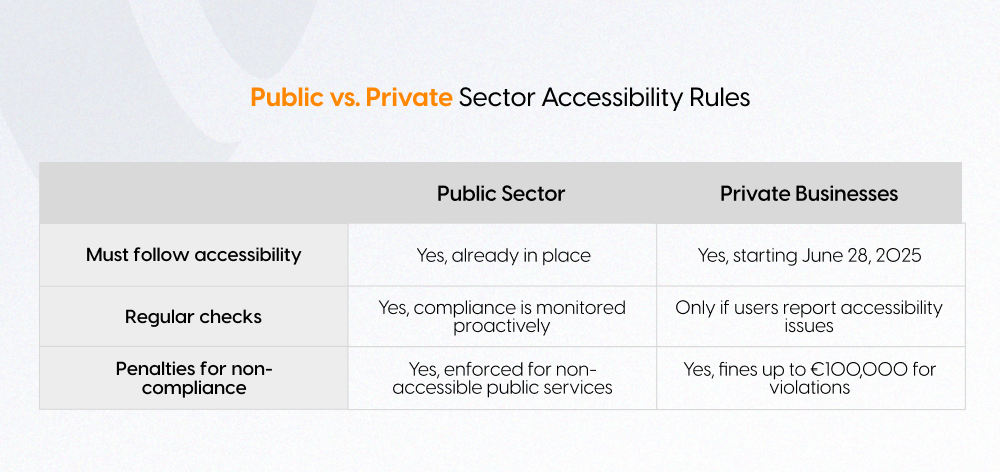
Accessibility rules differ for public-sector organizations and private businesses. Public-sector websites usually follow stricter accessibility obligations, while private businesses may be affected by BFSG and European Accessibility Act requirements when they offer consumer-facing digital products or services.
For TYPO3 websites, the accessibility approach should match the organization type, audience, and services offered online.
Area | Public Sector | Private Sector |
Main legal focus | BITV 2.0, BGG, EN 301 549 | BFSG and European Accessibility Act |
Who it affects | Government bodies, public institutions, municipalities, and public service platforms | Businesses offering consumer-facing digital services, e-commerce, banking, booking, apps, or digital documents |
Website areas to review | Public pages, forms, PDFs, portals, navigation, search, and contact options | Product pages, checkout, login, registration, payment, forms, and customer support |
TYPO3 focus | Accessible templates, documents, forms, language settings, and editor workflows | Accessible conversion paths, forms, extensions, content elements, and key user journeys |
Public-sector websites should focus on accessibility statements, accessible documents, feedback options, and regular audits. Private businesses should check whether BFSG applies and whether users can complete important tasks with keyboards, screen readers, zoom, captions, or other assistive technologies.
Legal Accessibility Guidelines and Requirements
Organizations need to follow legal requirements, technical standards, and accessibility guidelines to make digital information usable for everyone, including people with disabilities. For TYPO3 websites, these rules should guide design, development, content editing, testing, and maintenance.
WCAG 2.2
WCAG 2.2 is the main technical framework for web accessibility. It follows four principles: content should be Perceivable, Operable, Understandable, and Robust.
For TYPO3 websites, WCAG 2.2 helps review templates, forms, menus, media, documents, content structure, and interactive elements. Most websites should aim for Level AA.
BFSG
The Accessibility Strengthening Act (BFSG) applies in Germany to covered products and services, especially consumer-facing digital services such as e-commerce, banking, apps, e-books, and other public-facing online services.
For TYPO3 websites, BFSG readiness means reviewing checkout flows, forms, booking systems, login areas, documents, and key user journeys.
BITV 2.0
BITV 2.0 is especially relevant for German public-sector websites. It sets accessibility expectations for public websites, applications, forms, services, and documents.
Public organizations using TYPO3 should review templates, navigation, PDFs, forms, language settings, and accessibility statements.
European Accessibility Act
The European Accessibility Act (EAA) is an EU-level directive that improves accessibility requirements across member states. It covers products and services such as e-commerce, banking, e-books, transport-related services, smartphones, computers, and digital interfaces.
EN 301 549
EN 301 549 is a European accessibility standard for ICT products and services. It is useful for public procurement, enterprise projects, accessibility audits, and technical compliance mapping.
BGG
The Disability Equality Act (BGG) supports equal participation for people with disabilities in Germany and is especially important for public-sector accessibility.
Quick Comparison Table
Standard / Law | Main Purpose | Most Relevant For |
WCAG 2.2 | Technical accessibility guidelines | Website owners, agencies, developers, and editors |
BFSG | German accessibility law for covered consumer services | Private businesses, e-commerce, banking, apps, and digital services |
BITV 2.0 | Accessibility rules for German public-sector digital services | Government portals, public forms, and documents |
European Accessibility Act | EU-level accessibility requirements | Businesses operating in Germany and the EU |
EN 301 549 | ICT accessibility standard | Public procurement, enterprise audits, and compliance mapping |
BGG | Disability rights framework in Germany | Public organizations and public digital services |
WCAG vs BFSG vs BITV 2.0 vs EAA
Accessibility standards and laws have different roles. Some explain how to make websites accessible, while others define who must comply and where the rules apply.
Standard / Law | Applies To | Main Purpose | Website Relevance |
WCAG 2.2 | Global accessibility standard | Technical accessibility guidance | Best checklist framework |
BFSG | Germany, relevant products/services | Consumer accessibility compliance | Important for e-commerce and digital services |
BITV 2.0 | German public sector | Public-sector accessibility | Important for government and public websites |
EAA | EU | Harmonized accessibility requirements | Relevant for EU-facing services |
EN 301 549 | ICT accessibility standard | Technical procurement and accessibility requirements | Useful for public and enterprise projects |
For TYPO3 websites, WCAG 2.2 works best as the practical checklist, while BFSG, BITV 2.0, EAA, and EN 301 549 help define the legal and compliance context.
What Changed in WCAG 2.2?
WCAG 2.2 adds new success criteria that improve accessibility for keyboard users, mobile users, people with low vision, and users with cognitive or motor difficulties.
WCAG 2.2 Update | What It Means |
Focus Not Obscured | Keyboard focus should not be hidden behind sticky headers, popups, cookie banners, or floating elements. |
Dragging Movements | Features that use drag-and-drop should also work through another input method. |
Target Size Minimum | Buttons, links, and icons should be large enough to click or tap easily. |
Consistent Help | Help options like contact links, support buttons, or FAQs should appear in a consistent place. |
Redundant Entry | Users should not need to enter the same information again if the website already has it. |
Accessible Authentication | Login should not rely only on memory tests, puzzles, or complex actions. |
WCAG 2.2 is better for future-ready accessibility because it covers modern website patterns such as mobile interfaces, sticky elements, login flows, multi-step forms, and drag-based interactions. For TYPO3 websites, it helps teams review templates, forms, extensions, navigation, content, and editor workflows more effectively.
Checklist for an Accessible Website
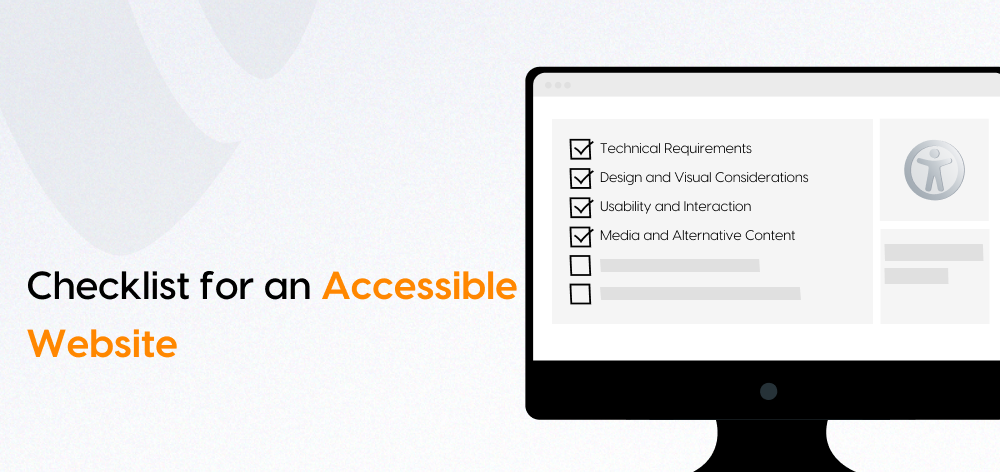
Before reviewing detailed accessibility requirements, start with this quick checklist. It helps identify the most important areas that affect usability, compliance, and the overall website experience.
Area | What to Check | Why It Matters |
Keyboard navigation | Can users navigate without a mouse? | Essential for users with motor impairments |
Focus states | Is the focus clearly visible? | Helps keyboard users track their position |
Headings | Are headings logical and properly structured? | Helps screen readers, users, and SEO |
Alt text | Do meaningful images have clear descriptions? | Helps blind and visually impaired users understand visuals |
Contrast | Is text easy to read against the background? | Helps users with low vision |
Forms | Are labels, instructions, and errors clear? | Helps users complete actions successfully |
Media | Are captions and transcripts available? | Helps deaf and hard-of-hearing users |
PDFs | Are documents accessible and readable by assistive tools? | Important for public resources, forms, and downloads |
Mobile | Does the layout work with zoom and small screens? | Supports users across devices and accessibility needs |
Use this table as the first review layer. After that, continue with the detailed checklist below covering technical requirements, design, usability, interaction, media, and TYPO3-specific accessibility checks.
Common Accessibility Mistakes to Avoid
Along with design and content issues, many accessibility problems happen because teams rely on quick fixes instead of proper testing. Avoid these common mistakes:
- Relying only on automated tools
Tools can detect many issues, but they cannot confirm full accessibility. Manual checks are still needed. - Assuming an accessibility widget guarantees compliance
Widgets may improve some user controls, but they cannot fix inaccessible templates, forms, PDFs, or poor content structure. - Using ARIA where semantic HTML works better
ARIA should support accessibility, not replace proper HTML structure. - Forgetting keyboard testing
Every menu, form, button, popup, and checkout step should work without a mouse. - Publishing inaccessible PDFs
PDFs should include readable text, proper headings, tags, alt text, and logical structure. - Using vague link text
Avoid links like “click here” or “read more” without context. Use descriptive link text that explains the destination. - Not training editors after technical fixes
Accessibility can break again if editors do not know how to use headings, alt text, tables, links, and documents correctly.
Advantages of an Accessible Website
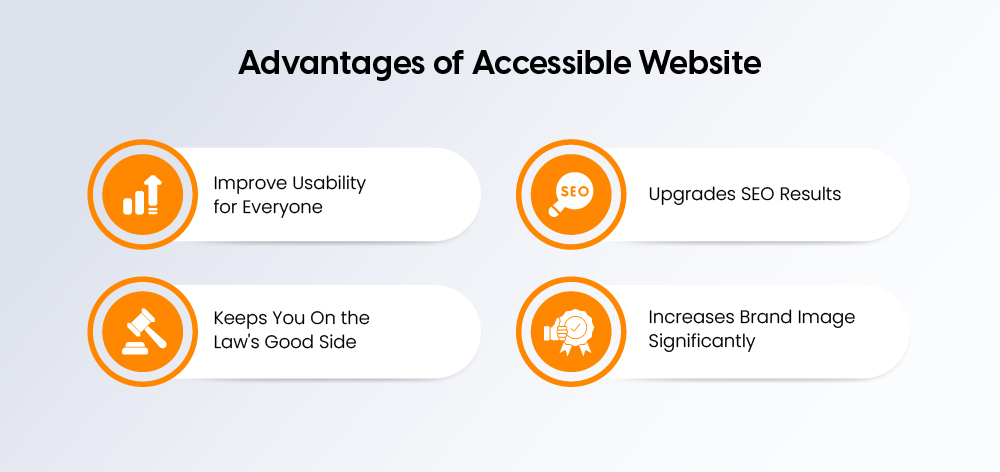
An accessible website benefits more than users with disabilities. It improves usability, trust, search visibility, and long-term digital performance.
- Better user experience for everyone
Clear structure, readable content, keyboard support, and simple navigation make websites easier for all visitors. - Reduced legal risk
Accessibility improvements help businesses and public organizations prepare for legal requirements such as BFSG, BITV 2.0, and EU accessibility rules. - Better SEO foundation
Proper headings, alt text, semantic HTML, readable content, and accessible navigation support both users and search engines. - Higher trust and brand credibility
Accessible websites show that a business values inclusion, quality, and responsible digital communication. - Improved conversion paths
Accessible forms, checkout flows, booking steps, and contact options reduce friction and help more users complete actions. - Better mobile usability
Accessibility improvements often make websites easier to use on small screens, with zoom, touch input, and different devices. - Stronger public-sector and enterprise readiness
Accessible websites are better prepared for audits, procurement requirements, compliance checks, and long-term maintenance.
Accessibility and SEO: Where They Overlap
Accessibility and SEO often support the same goal: making website content easier to understand, navigate, and use. A well-structured accessible website is also easier for search engines to crawl and interpret.
Accessibility Element | SEO Benefit |
Clear headings | Improve page structure, readability, and crawlability |
Alt text | Helps users and search engines understand images |
Descriptive links | Improves navigation and gives better context |
Accessible forms | Reduces friction and form abandonment |
Semantic HTML | Supports screen readers and search engines |
Faster, cleaner pages | Improves user experience and engagement signals |
For TYPO3 websites, accessibility and SEO should be planned together across templates, content elements, forms, media, and editor workflows.
Helpful Tools to Check Web Accessibility
Accessibility tools can help identify common issues, but they should not replace manual testing. The best approach is to combine automated checks with keyboard testing, screen reader testing, and real user journey reviews.
Tool | Best For | Limitation |
WAVE | Visual accessibility issue detection | Needs manual review |
Lighthouse | Quick browser audit | Not a full compliance test |
axe DevTools | Developer-level accessibility checks | Needs technical interpretation |
NVDA | Screen reader testing | Windows-focused |
VoiceOver | macOS and iOS screen reader testing | Requires manual testing |
BITV Test | Germany-specific accessibility review | More detailed and process-heavy |
PAC | PDF accessibility testing | Only for documents |
Contrast Checker | Color contrast testing | Does not test full design usability |
Use these tools to find issues faster, then validate important pages manually, especially forms, menus, checkout flows, PDFs, and TYPO3-generated content.
Automated Testing vs Manual Testing
Automated tools are useful for finding accessibility issues quickly, but they cannot prove full accessibility compliance.
Manual testing is still required to check real user experience, especially for:
- Keyboard navigation
- Screen reader experience
- Focus behavior
- Form usability
- Content meaning
- Menus, popups, and interactive elements
- Complete user journeys such as login, checkout, booking, or contact forms
The best approach is to combine automated scans with manual testing. This gives a more accurate view of how accessible your TYPO3 website is for real users.
Tools That Help People Access Websites
People with disabilities use different assistive technologies and accessibility features to browse websites more easily. These tools help users read, navigate, understand, and interact with digital content.
Common tools include:
- Screen readers that read website content aloud for blind or visually impaired users
- Braille displays that convert digital text into tactile Braille output
- Keyboard navigation tools that allow users to browse without a mouse
- Voice commands that help users control websites through speech
- Browser zoom for increasing text, images, and interface size
- Built-in OS accessibility features such as high contrast mode, reduced motion, and text scaling
- Switch devices for users with limited mobility
- Speech recognition tools for hands-free navigation and input
- Screen magnifiers for users with low vision
- Captions and live transcription tools for audio and video content
This is why websites should be tested with different devices, browsers, input methods, and assistive technologies.
TYPO3-Specific Accessibility Checklist
Accessibility in TYPO3 should be reviewed across templates, forms, content elements, extensions, and multilingual settings. Use this checklist to identify key areas that need attention.
Area | What to Check |
TYPO3 Templates and Sitepackage | Use semantic HTML in Fluid templates, add landmark regions, avoid unnecessary ARIA, and ensure accessible navigation and breadcrumbs. |
TYPO3 Forms | Add proper labels, use clear validation messages, group related fields, and make sure form flows work with a keyboard. |
TYPO3 Content Elements | Use logical headings, avoid empty headings, add meaningful alt text, use accessible tables only when needed, and avoid image-only text. |
TYPO3 Extensions | Test extension output with keyboard navigation, check ARIA labels and roles, review frontend markup, and re-check compatibility after extension updates. |
TYPO3 Multilingual Sites | Set the correct page language, translate alt text and form errors, review language switchers, and ensure localized PDFs are accessible. |
This checklist helps TYPO3 teams review both technical setup and daily content workflows.
What to Review on Your TYPO3 Website
To make sure your TYPO3 website is accessible, review the most important user journeys first. Start with pages and features that directly affect navigation, conversions, legal requirements, or public access.
Priority | What to Review | Examples |
Critical | Core user journeys | Checkout, forms, login, navigation, contact forms, booking flows |
High | Main website structure | Templates, menus, PDFs, key landing pages, service pages |
Medium | Content and media | Blog content, videos, images, tables, downloads |
Low | Supporting improvements | Decorative visuals, optional enhancements, minor layout refinements |
Focus first on anything that blocks users from completing an important action. Then improve content, media, documents, and visual details over time.
Accessibility Checklist by Website Type
Different websites have different accessibility risks. Review the most important user journeys based on the type of website you manage.
Website Type | Key Areas to Check |
E-commerce Websites | Product pages, cart, checkout, login, payment, and order confirmation |
Public-Sector Websites | Forms, PDFs, language clarity, navigation, contact information, and accessibility statement |
SME Websites | Contact forms, service pages, navigation, mobile readability, PDFs, and brochures |
B2B Websites | Login areas, partner portals, restricted downloads, lead forms, search, and filters |
For TYPO3 websites, start with the pages and features users rely on most. Then review supporting content, documents, media, and editor-managed pages to keep the full website accessible over time.
How to Improve Your TYPO3 Website Accessibility
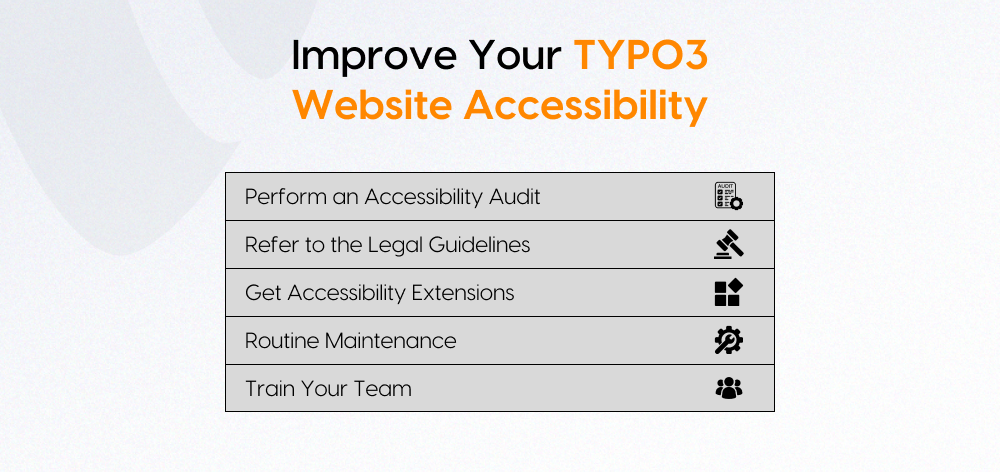
Improving accessibility should be handled step by step. Start with the most important pages, fix critical barriers first, and then build accessibility into regular TYPO3 maintenance and content workflows.
30-Day Accessibility Improvement Plan
Timeline | Focus Area | What to Do |
Week 1 | Audit key templates and top pages | Review homepage, landing pages, forms, navigation, login areas, documents, and important user journeys. |
Week 2 | Fix critical issues | Improve navigation, contrast, heading structure, focus states, labels, and form errors. |
Week 3 | Improve content and media | Update alt text, videos, transcripts, PDFs, tables, links, and editor-created content. |
Week 4 | Test and validate | Test with keyboard navigation, screen readers, mobile devices, accessibility tools, and real user flows. |
After the first 30 days, continue accessibility checks during TYPO3 updates, content publishing, extension changes, and website redesigns.
Accessibility Issue Severity Matrix
Not every accessibility issue has the same impact. Use this matrix to prioritize fixes based on user impact and business risk.
Severity | Examples | Fix Priority |
Critical | Keyboard traps, unusable checkout, inaccessible login | Fix immediately |
High | Missing labels, poor contrast, broken focus states | Fix quickly |
Medium | Weak alt text, unclear links, missing transcripts | Plan fixes |
Low | Minor layout issues, optional enhancements | Improve over time |
Start with issues that block users from completing important actions. Then improve supporting content, media, documents, and visual details.
Why Make Your TYPO3 Website Accessible?
Making your TYPO3 website accessible improves usability, compliance readiness, and long-term digital performance.
Key benefits include:
- Legal readiness for accessibility requirements such as BFSG, BITV 2.0, WCAG, and EU accessibility rules.
- Better usability for aging users who may face challenges with vision, mobility, memory, or reading comfort.
- Stronger customer trust by showing that your website is inclusive, professional, and user-focused.
- Improved search visibility through better headings, alt text, semantic HTML, readable content, and cleaner structure.
- More inclusive digital experiences for users with disabilities, temporary impairments, or different device needs.
- Lower risk during website audits by keeping templates, forms, PDFs, content, and editor workflows accessibility-ready.
Accessibility Statement and Documentation Checklist
Accessibility is easier to manage when every audit, limitation, and improvement plan is documented. This is especially important for German public-sector websites and businesses preparing for BFSG, BITV 2.0, or WCAG-related reviews.
Use this checklist to keep your accessibility documentation complete:
Item | What to Include |
Accessibility statement | A clear statement explaining the website’s accessibility status |
Date of last audit | When the website was last reviewed |
Standard followed | WCAG 2.2, BITV 2.0, EN 301 549, or other relevant standards |
Known limitations | Current accessibility issues that still need improvement |
Feedback/contact option | A way for users to report accessibility barriers |
Remediation roadmap | Planned fixes, priorities, and timelines |
Re-test schedule | When the website will be checked again |
Responsible internal owner | The team or person responsible for accessibility updates |
Good documentation helps teams track progress, respond to user feedback, and keep accessibility part of ongoing TYPO3 website maintenance.
How Often Should You Test Website Accessibility?
Website accessibility should be tested regularly, not only once during launch. Every design change, content update, extension update, or new user journey can create new accessibility issues.
Test your TYPO3 website:
- Before launch to catch major barriers early
- After a redesign to review templates, navigation, forms, and layouts
- After extension updates to check frontend output and user flows
- After adding new templates to confirm structure, headings, and keyboard access
- After major content uploads such as PDFs, videos, landing pages, or new service pages
- Quarterly for high-risk websites such as public-sector, e-commerce, banking, or booking websites
- At least annually for standard business websites to keep accessibility aligned with current content and technology
Regular testing helps keep your TYPO3 website accessible, compliant, and easier to use over time.
Conclusion
Accessibility helps make TYPO3 websites easier to use, more inclusive, and better prepared for legal and technical requirements.
Start with a quick audit, focus on critical user journeys, and combine automated tools with manual testing. Accessibility should also remain part of ongoing TYPO3 maintenance, content updates, and extension reviews.
NITSAN provides accessibility services for TYPO3 websites, including audits, technical fixes, editor guidance, and ongoing support.
A structured approach to TYPO3 accessibility
The guide walks through law, testing, templates, editorial work, forms and maintenance in 8 chapters. With a checklist you can tick off.
FAQs
WCAG 2.2 is not a German law, but it is widely used as the practical accessibility standard for BFSG, BITV 2.0, EN 301 549, and EU accessibility requirements.
No. BFSG mainly applies to covered consumer-facing services such as e-commerce, banking, booking systems, apps, e-books, and other relevant digital services.
BFSG focuses on covered consumer products and services in Germany. BITV 2.0 mainly applies to German public-sector websites and digital services.
No. Automated tools can find common issues, but manual testing is still needed for keyboard use, screen readers, forms, focus states, and real user journeys.
TYPO3 editors should check headings, alt text, link text, tables, PDFs, videos, language settings, forms, and content readability.
The best checklist combines WCAG 2.2 with TYPO3-specific checks for templates, forms, extensions, content, media, documents, language settings, and editor workflows.

Contact for SMEs, government organizations and BITV 2.0
Stefan Reinhardt
Service Partner - Germany

Stefan Reinhardt
Service PartnerStefan solves tech problems for businesses. He focuses on upgrading outdated systems and moving companies to the cloud. At NITSAN, he collaborates with clients to create solutions that save both time and money. Outside of work, he enjoys brewing coffee and hiking with his dog.
Be the First to Comment