---
title: "TYPO3 Backup and Restore: Manual and Automated Backup Steps"
url: "https://nitsantech.de/en/blog/typo3-backup"
description: "Protect your website with a reliable TYPO3 backup. Follow simple manual or automated steps to backup and restore your site. Read more!"
image: "https://nitsantech.de/fileadmin/_processed_/7/b/csm_TYPO3-Backup-and-Restore_0457876955.jpg"
date: 2025-10-14
modified: 2025-11-07
lastUpdated: 2026-02-26
keywords:
- typo3 backup
- typo3 database
- typo3 website
categories:
- TYPO3 CMS
---
# TYPO3 Backup and Restore: Manual and Automated Backup Steps
TYPO3 Backup and Restore: Manual and Automated Backup Steps
===========================================================
27 Oct 2025
[](https://nitsantech.de/en/blog/author/sven-thelemann)
[Sven Thelemann](https://nitsantech.de/en/blog/author/sven-thelemann)
[ TYPO3 CMS ](https://nitsantech.de/en/categories/typo3-cms)
Without a proper backup in place, a single fault or crash could clear your work, causing downtime and frustration. A single mistake could set you back hours, days, or even months of work.
Table of content
Backups provide peace of mine that, if something happens, whether it be a server crash, accidental deletion, or security breach, that you can restore your site quickly and get back to business.
This guide shows you how to manually and automatically back up and restore your [**TYPO3**](https://nitsantech.de/en/blog/typo3) site, easily!
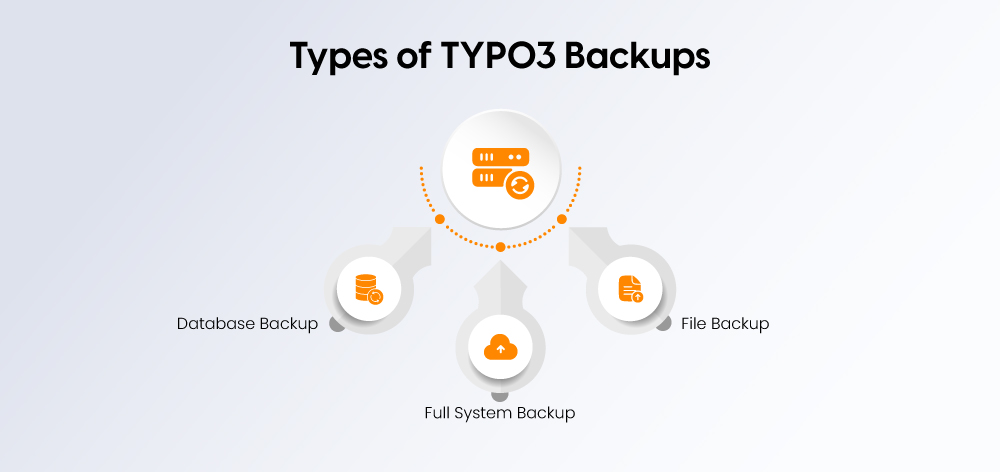
Not every backup has the same value when it comes to protecting your [**TYPO3 website**](https://nitsantech.de/en/blog/typo3-website). There are three main types of backups:
### **1. Database Backup**
Your TYPO3 database is the heart of your website. It contains all content, pages, users, and configurations. A database backup ensures that you can restore your content and settings if something happens to your files on the server.
### **2. File Backup**
Files ensure that your website looks good and functions correctly. The most important folders for a backup are:
- fileadmin/ – this is where user-uploaded files (images/documents) are located.
- uploads/ – also a folder with user-uploaded files.
- typo3conf/ – contains your configuration files and extensions.
Backing up these folders ensures that your page structure, extensions, and media are safe.
### **3. Full System Backup**
A full TYPO3 system backup includes the database, all files, and creates a single snapshot of your website. It is the best backup because it allows you to restore your entire [**TYPO3 installation**](https://nitsantech.de/en/blog/installing-typo3) exactly as it was.
In manual backup, there are mainly two components: the database and the files.
#### **1. Backing Up the Database Using mysqldump**
The database stores all your content, pages, and configurations. You can perform a backup using the mysqldump command:
mysqldump -u username -p database\_name > backup.sql
Execute the command in the command line and replace "username" with your database username and "database\_name" with the name of your [**TYPO3 database**](https://nitsantech.de/en/blog/typo3-database). The command creates a ".sql" file that contains all your data. Save this file in a secure location.
#### **2. Backing Up Files Manually via FTP or File Manager**
Connect to your server using an FTP client or your hosting provider's file manager and download the following directories:
- **fileadmin/** – all uploaded media and documents
- **uploads/** – additional user-uploaded files
- **typo3conf/** – configuration files and extensions
Make sure to maintain the directory structure to make restoration easier.
#### **Creating a Complete ZIP or TAR Archive of the Site**
To simplify the backup, you can also compress the entire TYPO3 installation into a complete archive. For example, you can execute the following command in the terminal:
tar -czvf typo3\_backup.tar.gz /path/to/typo3/
This creates a ".tar.gz" file that contains all files and folders of your TYPO3 installation. It can be stored locally or moved to a secure server.
Automating your TYPO3 backups saves resources and makes it impossible to forget to back up your website. Here's how you can set up automatic backups:
#### **1. Using TYPO3 Scheduler for Automatic Backups**
**Step 1:** Log in to the TYPO3 backend and go to **System > Scheduler**.
**Step 2:** Click **add task**, then start a new task and select **Execute console command** or a similar backup task.
**Step 3:** Configure the task:
- Select the frequency (daily, weekly, or monthly).
- Specify the command to back up the database or files (e.g., a custom shell script).
**Step 4:** Save and activate the task. TYPO3 will now automatically perform backups according to your settings.
#### **2. Using Backup Extensions or Scripts**
Extensions like Back Plus make backups more convenient, less manual, or fully automated.
**Step 1:** Install the extension via the **Extension Manager** in TYPO3.
**Step 2:** Go to the extension settings and choose what to back up: database, files, or both.
**Step 3:** Set a schedule for automatic backups.
**Step 4:** Configure the backup storage location – local server, FTP, or cloud storage (Dropbox, Google Drive, Amazon S3).
#### **Storing Backups Securely (Local vs. Cloud)**
- **Local Storage:** Your backups are stored only on the server. Server failures also affect local backup files.
- **Cloud Storage:** Provides external storage, security, and availability! Examples: Dropbox, Google Drive, or Amazon's S3.
Carefully follow these steps to safely restore your website data:
#### **1. Restoring the Database**
**Step 1:** Log in to your server via SSH or with a database management tool like phpMyAdmin.
**Step 2:** Locate your database backup file, typically a ".sql" file.
**Step 3:** Execute the following command in your SSH shell to restore the database:
mysql -u username -p database\_name < backup.sql
Replace "username" with your database username and "database\_name" with the name of your TYPO3 database. You will be prompted to enter the password.
**Step 4:** Verify that the database has been correctly restored by checking this in the [**TYPO3 Backend**](https://nitsantech.de/en/blog/typo3-backend).
#### **2. Restoring Files and Directories**
**Step 1:** Log in to your server via FTP or the file manager of your [**TYPO3 Hosting**](https://nitsantech.de/en/blog/typo3-hosting).
**Step 2:** Upload the backed-up directories (fileadmin/, uploads/, typo3conf/) to the correct location on the server.
**Step 3:** You may need to overwrite existing files and maintain the same folder structure.
#### **3. Full Site Restore**
If you are restoring your entire TYPO3 installation:
1. **Restore the database** as described above.
2. **Upload all backup files and directories** to the server.
3. **Clear the TYPO3 caches** by logging in to the backend or executing the command:
./typo3cms cache:flush
4. **Check your website** to ensure everything is functioning correctly. Check pages, extensions, and uploaded files.
Implementing regular manual backups, regular automated backups, or both ensures that you will be able to restore your site quickly to minimize downtime and prevent data loss.
If you want help, consult with a professional [**TYPO3 Agency**](https://nitsantech.de/en/typo3-agency) that can help you set up an effective backup strategy for your site.
*So, take action now!*

Is Your TYPO3 Website Properly Secured?
---------------------------------------
Learn how to review system updates, user permissions, hosting security, and configuration settings.
[ Download guide ](https://nitsantech.de/javascript:;)
FAQs
----
How often should I back up my TYPO3 website?
It depends on how often your site content is updated. For sites that update frequently, we suggest daily backups. For small, static websites, a backup once a week is sufficient.
Can TYPO3 backups be automated?
Yes. You can use either the TYPO3 Scheduler or backup extensions such as Backup Plus to schedule backups for both the database as well as files.
Where should I store my TYPO3 backups?
Store backups in a secure location. Backup to the server is convenient, but you may want to consider off site solutions, such as cloud storage, as server failures can happen.
What should I include in a TYPO3 backup?
A complete backup should include:
- The database (all content and configuration)
- File directories like **fileadmin/**, **uploads/**, and **typo3conf/**
- Any custom TYPO3 extensions or configuration files
How do I restore my TYPO3 website from a backup?
You can recover your database from backup, restoring the “.sql” file first, then uploading the directories you've saved (fileadmin/, uploads/, typo3conf/) back to the server. You may need to clear your TYPO3 cache. Finally, check that your site functionality is working.
#### Contact for Internet agency and TYPO3 projects
#### Sven Thelemann
Service Partner - Germany
[ st@nitsantech.de ](mailto:st@nitsantech.de) [ +49 351 48196661 ](tel:4935148196661)


### Sven Thelemann
Client Service Lead
- [](https://www.linkedin.com/in/sven-thelemann-0a30867b/ "linkedin")
Sven Thelemann serves as the Client Service Lead at NITSAN, focusing on delivering TYPO3 solutions that meet client goals. With a strong understanding of technology and client expectations, he ensures smooth communication and project execution. Outside of work, Sven enjoys cycling and experimenting with homemade recipes.
Comments and Responses
----------------------
Thank you for your comment. Your Comment Added Successfully.
Thank you for your comment. Your Comment Will Be Visible After Approval.
Oops! Something went wrong, please try again later.
##### **Be the First to Comment**
### Related Blogs
[ 
#### TYPO3 CMS for Public Sector Websites: Requirements and Best Practices
](https://nitsantech.de/en/typo3-public-sector-2026)
[ 
#### TYPO3 SEO: Improve Your TYPO3 Website Ranking
](https://nitsantech.de/en/blog/typo3-seo)